
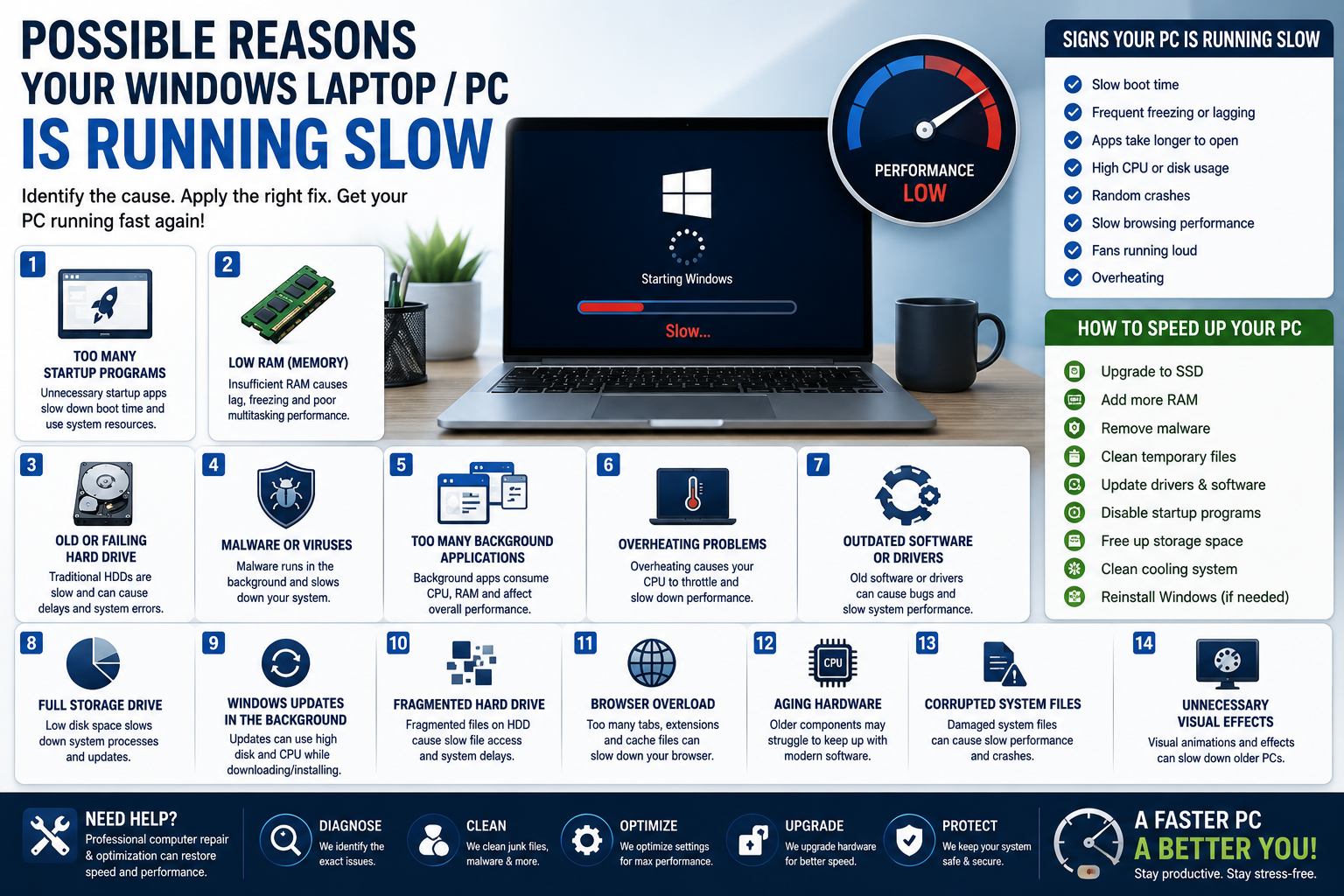
Possible Reasons Your Windows Laptop or PC Is Running Slow
A slow Windows laptop or PC can be incredibly frustrating. Whether you’re trying to work, browse the internet, play games, or attend online meetings, poor performance can waste time and reduce productivity.
In 2026, computers are expected to run faster and more efficiently than ever — so when your Windows device starts slowing down, it’s usually a sign that something isn’t working properly.
The good news is that many common performance problems can be fixed.
In this guide, we’ll explain the most common reasons why your Windows laptop or PC may be running slow and what you can do to improve performance.
1. Too Many Startup Programs
One of the most common causes of slow performance is having too many programs launching when Windows starts.
Many applications automatically add themselves to startup without users realizing it.
This can:
Increase boot times
Consume memory (RAM)
Slow down overall system performance
How to Fix It
You can manage startup applications through:
Task Manager
Windows Settings
Startup Apps menu
Disabling unnecessary startup programs can significantly speed up boot time and system responsiveness.
2. Low RAM (Memory)
RAM plays a major role in system performance.
If your computer doesn’t have enough memory, it may struggle to handle:
Multiple browser tabs
Video editing
Gaming
Large applications
Multitasking
Symptoms of low RAM include:
Freezing
Lagging
Slow app loading
System crashes
Solution
Upgrading RAM can dramatically improve performance, especially on older laptops and PCs.
3. Old or Failing Hard Drive
Traditional HDDs (hard disk drives) are much slower than modern SSDs (solid-state drives).
An aging or failing hard drive can cause:
Slow startup times
Delayed file access
Freezing
Clicking noises
System crashes
Best Upgrade
Replacing an old HDD with an SSD is one of the most effective ways to speed up a Windows computer.
SSD upgrades can improve:
Boot speed
File transfers
Application loading
Overall responsiveness
4. Malware or Viruses
Malware infections are a major cause of slow computers.
Viruses may:
Run hidden background processes
Consume system resources
Spy on user activity
Corrupt files
Cause crashes
Signs of malware include:
Pop-up ads
Slow internet
Random software installations
High CPU usage
Recommended Action
Run a full antivirus and anti-malware scan immediately.
Professional virus removal services can also help remove hidden threats safely.
5. Too Many Background Applications
Background applications consume CPU, RAM, and storage resources even when you’re not actively using them.
Common resource-heavy apps include:
Cloud sync software
Web browsers
Antivirus scans
Streaming apps
Communication tools
How to Improve Performance
Close unused applications and monitor resource usage through Task Manager.
Reducing background activity helps free up system resources.
6. Overheating Problems
Overheating can force your CPU to slow itself down to prevent damage.
Common causes include:
Dust buildup
Faulty cooling fans
Poor airflow
Old thermal paste
Signs of overheating:
Loud fan noise
Hot laptop surfaces
Sudden shutdowns
Lag during gaming or multitasking
Solution
Professional cleaning and cooling system maintenance can improve airflow and restore performance.
7. Outdated Software or Drivers
Old software and drivers can create compatibility issues and performance problems.
Outdated drivers may affect:
Graphics performance
Wi-Fi connectivity
Audio systems
USB devices
Recommended Fix
Regularly update:
Windows
Device drivers
Security software
Applications
Software updates often include performance improvements and bug fixes.
8. Full Storage Drive
When your storage drive becomes nearly full, Windows performance can slow down significantly.
Low storage space affects:
Virtual memory
File management
Updates
Application performance
How to Free Up Space
Delete:
Temporary files
Unused programs
Large downloads
Duplicate files
Using cloud storage or external drives can also help free up space.
9. Windows Updates Running in the Background
Windows updates can temporarily slow down computers while downloading or installing updates.
This may cause:
High disk usage
CPU spikes
Slow internet performance
What You Can Do
Allow updates to complete fully and restart your computer afterward.
Keeping Windows updated is important for both performance and security.
10. Fragmented Hard Drives
If your computer still uses a traditional HDD, fragmentation can slow file access.
Fragmentation happens when files become scattered across the drive over time.
Solution
Windows includes built-in drive optimization tools that can help improve HDD performance.
Note:
SSDs should not be manually defragmented frequently.
11. Browser Overload
Modern web browsers use significant system resources.
Performance issues often come from:
Too many tabs open
Browser extensions
Cached files
Memory-heavy websites
Tips
Close unused tabs
Remove unnecessary extensions
Clear browser cache regularly
Switching to a lighter browser may also improve performance.
12. Aging Hardware
Older computers naturally become slower as software becomes more demanding.
Common aging hardware limitations include:
Older CPUs
Limited RAM
Slow hard drives
Outdated graphics cards
Upgrade Options
Instead of replacing the entire computer, targeted upgrades may improve performance at a lower cost.
Common upgrades:
SSD installation
RAM upgrade
Battery replacement
Fresh Windows installation
13. Corrupted Windows System Files
Damaged or corrupted system files can affect Windows stability and speed.
This may happen due to:
Improper shutdowns
Malware
Failed updates
Driver conflicts
Repair Options
Windows includes built-in repair tools such as:
System File Checker (SFC)
DISM repair tools
Startup Repair
In severe cases, reinstalling Windows may be necessary.
14. Unnecessary Visual Effects
Windows includes visual animations and effects that can reduce performance on older systems.
Disabling certain visual effects may help improve speed on low-spec devices.
How to Speed Up a Slow Windows Laptop or PC
Here are some of the best ways to improve performance:
Upgrade to an SSD
Add more RAM
Remove malware
Clean temporary files
Update drivers and software
Disable unnecessary startup programs
Free up storage space
Clean dust from cooling systems
Reinstall Windows if needed
Regular maintenance helps keep systems running smoothly.
When to Seek Professional Computer Repair Services
If your computer remains slow after basic troubleshooting, professional diagnostics may be needed.
A technician can:
Identify hardware failures
Remove advanced malware
Upgrade components
Optimize Windows settings
Recover important data
Professional repair services can often restore performance without requiring a full replacement.
Final Thoughts
A slow Windows laptop or PC can be caused by many different factors, from outdated hardware and malware infections to software conflicts and overheating.
Understanding the possible causes helps you identify the best solution and avoid unnecessary frustration.
In many cases, proper maintenance, software optimization, or affordable hardware upgrades can dramatically improve system speed and performance.
If your computer is slowing you down, professional computer repair and optimization services can help restore your device and extend its lifespan — saving you time, money, and stress in 2026 and beyond.